
Start here
VPN not working? Isolate the failing layer before you replace it
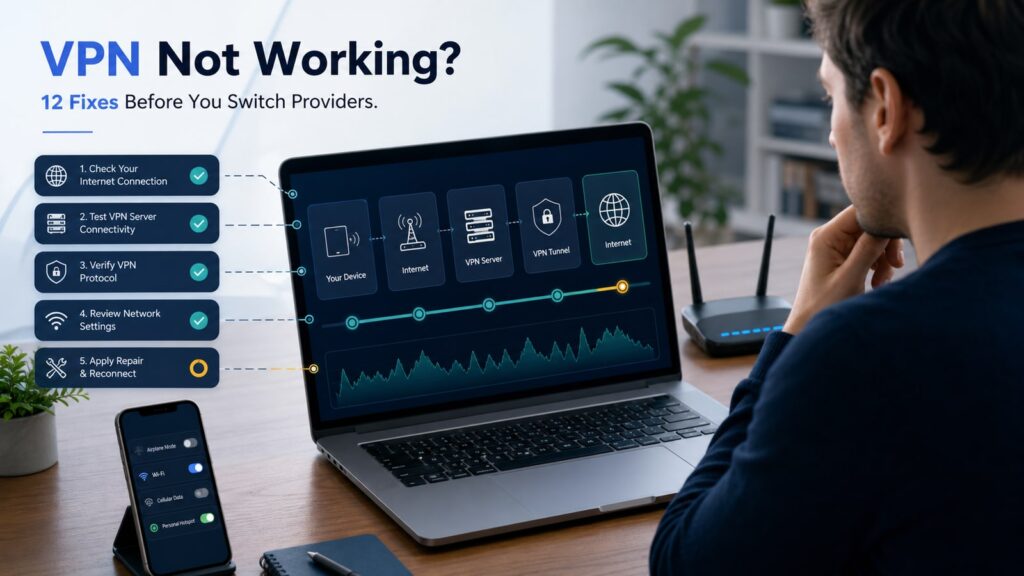
If your VPN is not working, first confirm the internet works with the VPN disconnected. Then try a nearby server, change protocol, restart the app and device, and test another network. Those five checks separate a provider outage from a local network, app or device problem without deleting important settings.
Do not begin with a factory reset or reinstall. A VPN connection has several layers: the local network, account, app, protocol, VPN server, DNS route and the destination service. Changing everything at once destroys the evidence that shows which layer failed.
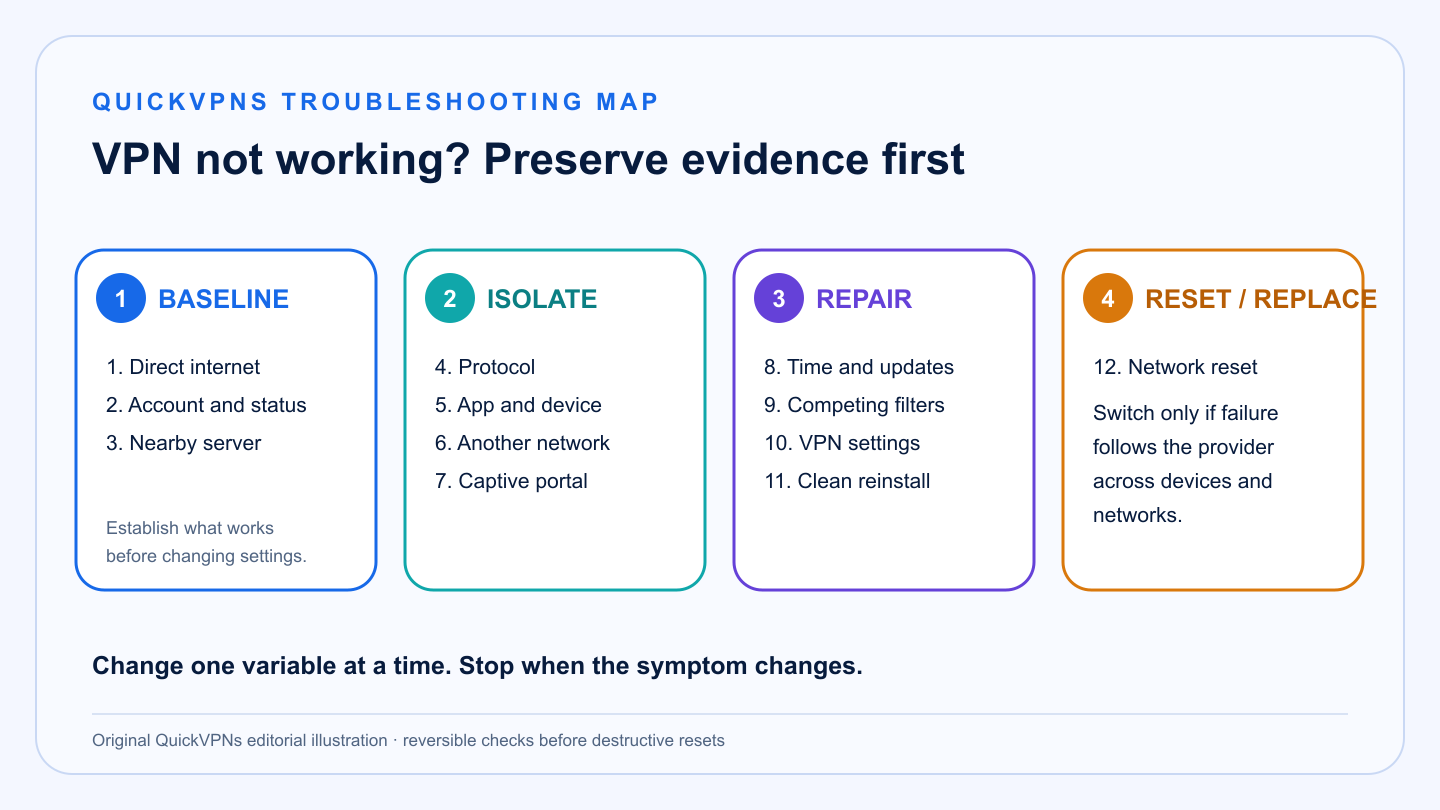
This guide gives twelve fixes from safest to most disruptive. Stop when the symptom changes, note what worked, and only switch providers when the evidence follows the provider across devices and networks.
Triage map
Four stages for diagnosing a broken VPN
Baseline · isolate · repair · replace
Read the symptom
What the failure usually points to
This is a starting hypothesis, not a diagnosis.
| Symptom | Likely layer | First check |
|---|---|---|
| No internet only when VPN is on | Protocol, server, kill switch or filter conflict | Nearby server, then Smart/automatic protocol |
| VPN will not authenticate | Account, subscription, clock or credential issue | Account status and automatic date/time |
| One site fails but others work | Destination block, cookies, DNS or exit reputation | Private window, another server, direct connection |
| Works on hotspot, not home Wi-Fi | Router, ISP, DNS or local firewall | Restart router; test another protocol |
| Works on phone, not laptop | Device app, adapter, firewall or stale profile | Update app; inspect competing network filters |
| Connects but is very slow | Distance, congestion, protocol or local bandwidth | Baseline speed and nearby server |
| Internet stays blocked after disconnect | Kill switch, stale route or adapter state | Reconnect, disable kill switch safely, restart app |
The repair ladder
12 fixes when your VPN is not working
Work in order. Later steps change more system state.
- Confirm the internet works without the VPN. Disconnect using the app, pause any strict kill switch according to the provider’s instructions, then load two unrelated websites. If nothing works, the VPN may be innocent: check Wi-Fi, Ethernet, the router and the ISP. Do not leave the kill switch disabled after the test.
- Check the provider’s service status and your account. Confirm the subscription is active, the device limit is not exhausted and there is no published outage. Sign in through the official account page rather than repeatedly changing passwords in the app.
- Try a nearby standard server. Specialty, multi-hop, Tor and dedicated endpoints add dependencies. Choose a normal server in your own or a neighboring country. If it works, the original server or route—not the entire service—was the problem.
- Use Smart or automatic protocol selection. Modern apps can cycle through WireGuard, TCP, UDP or obfuscated paths. If automatic mode fails, test one documented alternative at a time. TCP can survive restrictive networks better, but is often slower.
- Restart the app, then the device. Fully quit the VPN instead of only closing its window. On Windows, check the system tray; on macOS, quit the menu-bar app. Restarting clears stuck processes and requests fresh routes without deleting profiles.
- Test another network. A phone hotspot is a useful control. If the same device and app work there, inspect the original router, captive portal, DNS policy or administrator restrictions. Do not bypass a workplace or school policy without permission.
- Complete the captive portal before connecting. Hotel, airport and café Wi-Fi often require a browser agreement. Disconnect the VPN, open a plain browser page, complete the legitimate portal, then reconnect. Never enter social or email credentials into a suspicious portal.
- Correct date, time and updates. Incorrect system time can break certificate validation and authentication. Enable automatic date and time, install current OS and VPN app updates, then restart. Update the router firmware if the failure is network-specific.
- Check competing VPN, firewall, antivirus and proxy software. Two network filters can fight over the same route. Temporarily disable one feature at a time using the vendor’s supported controls. On managed devices, ask IT; do not remove company profiles or endpoint security.
- Review kill switch, split tunnel, DNS and IPv6 settings. A strict kill switch can keep traffic blocked after an incomplete connection. Split tunneling can send an app down the wrong route. Return provider settings to their documented defaults, reconnect, then re-enable custom rules individually.
- Repair or reinstall the VPN app. Export any custom profiles and note settings first. Use the provider’s repair tool where available; otherwise uninstall, restart, download a fresh installer from the official site and reinstall. Avoid third-party download portals.
- Reset network settings only as the last local step. Windows Network Reset removes and reinstalls adapters and may require VPN or virtualization software to be set up again. iPhone and iPad network reset removes saved Wi-Fi networks, passwords, cellular, VPN and APN settings. On Mac, Apple recommends testing a new network location. Back up what you need first.
Narrow the result
When the VPN connects but the task still fails
“Connected” means a tunnel exists. It does not guarantee that every destination accepts it.
One site or app is blocked
- Try a private window to remove stale cookies.
- Use a nearby standard server instead of a specialty route.
- Check whether the service bans VPN or datacenter addresses.
- Use split tunneling only if the task is safe outside the VPN.
The whole connection is slow
- Record a no-VPN baseline on the same network.
- Choose the nearest server and modern protocol.
- Disable multi-hop for the comparison.
- Check whether Wi-Fi, router CPU or ISP speed is already the limit.
A VPN cannot guarantee streaming access, lower latency, a CAPTCHA-free session or acceptance by a bank. Those systems make independent risk and licensing decisions.
Replacement threshold
When the problem is probably the VPN provider
Switch only after the failure follows the provider.
- The provider fails on two devices and two unrelated networks while direct internet works.
- Multiple standard servers and documented protocols fail.
- The provider confirms an unresolved incident or cannot explain the error.
- The app repeatedly leaks or breaks the documented kill-switch behavior after clean reinstall.
- A required platform feature was removed, is unsupported on your device, or cannot meet a measured task.
- Support cannot offer a reproducible recovery path within the refund or renewal decision window.
One blocked streaming site or one slow distant server is not enough evidence. A repeatable cross-device, cross-network failure is.
Save the server, protocol, operating-system version, timestamp and exact error message before contacting support. That record makes the failure reproducible, helps support rule out account or network faults, and gives you a fair evidence set when comparing replacement services.
If replacement is justified
Three alternatives with different recovery strengths
Choose the alternative whose documented fallback path addresses your actual failure.
Best all-round fallback
NordVPN
NordVPN is the broadest replacement when the current provider lacks stable apps or useful protocol fallbacks. NordLynx covers everyday use, while NordWhisper and OpenVPN variants create alternative paths on restrictive networks.
Strengths
- Multiple documented protocols
- Broad desktop and mobile coverage
- Clear kill-switch documentation
Trade-offs
- No guarantee against network blocking
- Ten-device limit
- Advanced settings differ by platform
Best value replacement
Surfshark
Surfshark is the practical replacement when device limits or restrictive networks are the main pain point. Unlimited connections and NoBorders reduce household friction, although neither guarantees that every network or destination will cooperate.
Strengths
- Unlimited simultaneous connections
- NoBorders mode
- Broad app coverage
Trade-offs
- No IPv6 support
- Platform features differ
- Restrictions can still win
Best privacy-first replacement
Proton VPN
Proton VPN is the privacy-first alternative when transparent troubleshooting and censorship-resistant protocol options matter. Smart Protocol, Stealth and alternative routing provide documented fallback paths, and the free plan offers a low-risk compatibility check before a paid decision.
Strengths
- Smart Protocol and Stealth
- Alternative routing
- Open-source apps and a free test path
Trade-offs
- Ten-device limit on paid plans
- Advanced features differ by OS
- Free plan has less location control
Get a useful answer
What to include in a VPN support ticket
- Operating system, device model and VPN app version.
- Exact error text and the time it occurred, with secrets removed.
- Whether direct internet works.
- Whether another device and another network reproduce the issue.
- Server country and protocol tested.
- The earliest step in this guide that changed the symptom.
- Sanitized diagnostic logs generated by the official app—never passwords, recovery codes or private keys.
Use the VPN Guides hub, review how VPNs work, or compare requirements in how to choose a VPN.
Do no harm
Troubleshooting moves to avoid
Do not weaken the device permanently
- Do not leave firewall, antivirus or kill switch disabled after a test.
- Do not install unsigned drivers or “VPN repair” utilities from download portals.
- Do not delete employer profiles or certificates on a managed device.
- Do not expose remote administration directly to the internet.
Do not destroy the evidence
- Do not reset the router and every device at the same time.
- Do not change server, protocol, DNS and firewall in one step.
- Do not post raw diagnostic logs or account identifiers publicly.
- Do not cancel before recording the repeatable failure and support response.
The safest diagnostic is a controlled comparison. Keep one working baseline, change one variable, and restore the previous state when the result does not improve. That discipline prevents a VPN problem from becoming a wider networking or security problem.
Practical answers
VPN not working FAQ
Why is my VPN connected but there is no internet?
The likely causes are a bad server route, blocked protocol, strict kill switch, DNS failure or conflict with another network filter. Try a nearby standard server and automatic protocol before changing system settings.
Why does my VPN work on mobile data but not Wi-Fi?
The Wi-Fi router, captive portal, administrator or ISP may block the protocol or alter DNS. Complete any legitimate portal, test another protocol and ask the network owner about restrictions.
Should I reinstall the VPN app?
Only after simpler checks. Record settings, use an official repair path if available, then reinstall from the provider’s official download page.
Will resetting network settings fix a VPN?
It can repair stale adapters or routes, but it removes network state and may require VPN or virtual-network software to be reconfigured. Use it last.
When should I switch VPN providers?
Switch when the same provider fails across multiple devices, networks, standard servers and documented protocols while direct internet and a credible alternative work.
How we built this
Troubleshooting methodology
The sequence follows reversible-first incident diagnosis: establish a baseline, change one variable, reproduce across device and network boundaries, then repair increasing amounts of local state. It uses current official provider, Apple and Microsoft guidance.
We do not recommend bypassing organizational controls, weakening security permanently or resetting networks before preserving configurations. Replacement links appear only after an evidence-based switch threshold.
Each step preserves a comparison point so a temporary improvement is not mistaken for a diagnosis. Record the network, device, protocol, server and exact error before changing another variable. A provider replacement is justified only when the same failure follows that provider across devices and unrelated networks while direct internet and a credible alternative work. This protects readers from unnecessary subscriptions and destructive resets. Use the VPN Guides hub, browse VPN troubleshooting guides, or compare replacement criteria.
Classify first
Outage and compatibility failures need different fixes
The ordering distinguishes an outage from a compatibility failure. A temporary server incident should not trigger driver removal, while a repeatable failure after sleep or on one operating system points toward the local application path. The guide therefore escalates only after a simpler comparison fails. Preserve the last known working state, record each result and stop when the evidence identifies one layer; additional changes only make recovery harder.